








📌 本文适合 Vue3 入门到进阶开发者阅读,完整实现一个生产级右键菜单(ContextMenu)组件。
关键词:Vue3 右键菜单、ContextMenu 组件、Composition API、Teleport、子菜单、自定义上下文菜单
一、功能特性概览
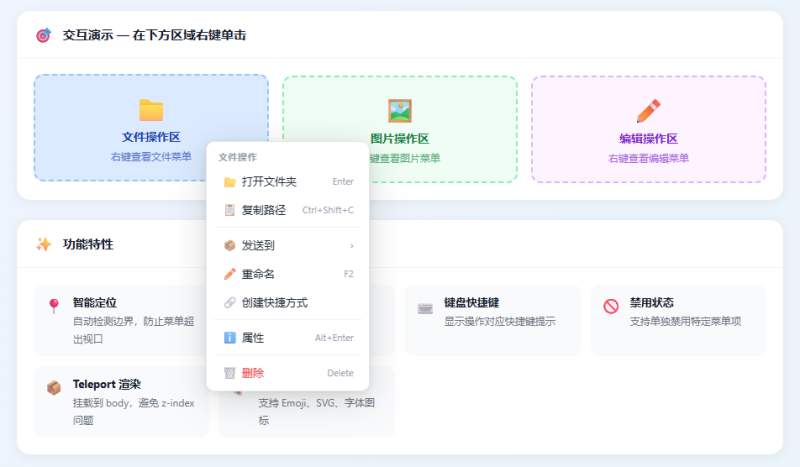
本组件具备以下能力,完全满足日常业务需求:
| 特性 | 说明 |
|---|---|
| 📍 智能定位 | 自动检测视口边界,防止菜单超出屏幕 |
| 🌲 子菜单嵌套 | 支持多级子菜单,hover 展开/收起 |
| ⌨️ 快捷键显示 | 可配置每个菜单项的快捷键提示 |
| 🚫 禁用状态 | 支持单独禁用特定菜单项 |
| 📦 Teleport 渲染 | 挂载到 body,彻底避免 z-index 层级问题 |
| 🎨 自定义图标 | 支持 Emoji、SVG、字体图标 |
| 🔲 分隔线 | 通过 type: 'divider' 轻松添加分隔线 |
| ♿ 无障碍友好 | 支持 Esc 关闭、全局点击关闭 |
二、效果预览
在不同触发区域右键,呈现不同菜单配置。支持文件操作、图片操作、编辑操作三类场景。
![图片[1]-Vue3 右键菜单组件从零实现:支持子菜单、快捷键、禁用状态与智能定位-小程博客](https://www.zenly.ink/wp-content/uploads/2026/05/7a58731e2c20260518135445.png)
![图片[2]-Vue3 右键菜单组件从零实现:支持子菜单、快捷键、禁用状态与智能定位-小程博客](https://www.zenly.ink/wp-content/uploads/2026/05/86a03d45d320260518135519.png)
![图片[3]-Vue3 右键菜单组件从零实现:支持子菜单、快捷键、禁用状态与智能定位-小程博客](https://www.zenly.ink/wp-content/uploads/2026/05/4b17bd37ce20260518135618.png)
三、目录结构
src/
├── components/
│   └── ContextMenu.vue      # 右键菜单核心组件
├── composables/
│   └── useContextMenu.js    # 可选:封装 Hook
└── App.vue                  # 使用示例
四、核心组件实现
4.1 ContextMenu.vue 完整源码
<template>
  <Teleport to="body">
    <Transition name="ctx-fade">
      <div
        v-if="visible"
        ref="menuRef"
        class="ctx-menu"
        :style="menuStyle"
        @contextmenu.prevent
      >
        <template v-for="(item, index) in items" :key="index">
          <!-- 分隔线 -->
          <div v-if="item.type === 'divider'" class="ctx-divider" />

          <!-- 子菜单 -->
          <div
            v-else-if="item.children && item.children.length"
            class="ctx-item ctx-item--has-sub"
            :class="{ 'ctx-item--disabled': item.disabled }"
            @mouseenter="openSubMenu(index, $event)"
            @mouseleave="closeSubMenu"
          >
            <span class="ctx-icon" v-if="item.icon" v-html="item.icon" />
            <span class="ctx-label">{{ item.label }}</span>
            <span class="ctx-arrow">›</span>

            <!-- 子菜单列表 -->
            <Transition name="ctx-fade">
              <div v-if="activeSubIndex === index" class="ctx-submenu">
                <template v-for="(sub, si) in item.children" :key="si">
                  <div v-if="sub.type === 'divider'" class="ctx-divider" />
                  <div
                    v-else
                    class="ctx-item"
                    :class="{ 'ctx-item--disabled': sub.disabled }"
                    @click.stop="handleClick(sub)"
                  >
                    <span class="ctx-icon" v-if="sub.icon" v-html="sub.icon" />
                    <span class="ctx-label">{{ sub.label }}</span>
                    <span v-if="sub.shortcut" class="ctx-shortcut">{{ sub.shortcut }}</span>
                  </div>
                </template>
              </div>
            </Transition>
          </div>

          <!-- 普通菜单项 -->
          <div
            v-else
            class="ctx-item"
            :class="{ 'ctx-item--disabled': item.disabled }"
            @click="handleClick(item)"
          >
            <span class="ctx-icon" v-if="item.icon" v-html="item.icon" />
            <span class="ctx-label">{{ item.label }}</span>
            <span v-if="item.shortcut" class="ctx-shortcut">{{ item.shortcut }}</span>
          </div>
        </template>
      </div>
    </Transition>
  </Teleport>
</template>

<script setup>
import { ref, computed, onMounted, onUnmounted, nextTick } from 'vue'

const props = defineProps({
  items: {
    type: Array,
    default: () => []
  }
})

const emit = defineEmits(['select'])

// 菜单显隐状态
const visible = ref(false)
const x = ref(0)
const y = ref(0)
const menuRef = ref(null)
const activeSubIndex = ref(-1)

// 计算菜单位置样式
const menuStyle = computed(() => ({
  left: x.value + 'px',
  top: y.value + 'px'
}))

/**
 * 打开菜单
 * @param {MouseEvent} event - 右键事件
 */
function open(event) {
  event.preventDefault()
  visible.value = true
  nextTick(() => {
    const menuEl = menuRef.value
    if (!menuEl) return
    const { innerWidth, innerHeight } = window
    const { offsetWidth: w, offsetHeight: h } = menuEl
    // 防止超出右侧/底部
    x.value = event.clientX + w > innerWidth  ? event.clientX - w : event.clientX
    y.value = event.clientY + h > innerHeight ? event.clientY - h : event.clientY
  })
}

// 关闭菜单
function close() {
  visible.value = false
  activeSubIndex.value = -1
}

// 点击菜单项回调
function handleClick(item) {
  if (item.disabled) return
  emit('select', item)
  item.action?.()  // 支持直接传入 action 函数
  close()
}

// 子菜单延迟关闭(避免鼠标移动时闪烁)
let subTimer = null
function openSubMenu(index) {
  clearTimeout(subTimer)
  activeSubIndex.value = index
}
function closeSubMenu() {
  subTimer = setTimeout(() => {
    activeSubIndex.value = -1
  }, 150)
}

// 全局监听:点击外部 / 右键 / Esc / 滚动 关闭菜单
function onGlobalClick(e) {
  if (menuRef.value && !menuRef.value.contains(e.target)) close()
}
function onEscape(e) {
  if (e.key === 'Escape') close()
}

onMounted(() => {
  document.addEventListener('click', onGlobalClick)
  document.addEventListener('contextmenu', onGlobalClick)
  document.addEventListener('keydown', onEscape)
  document.addEventListener('scroll', close, true)
})
onUnmounted(() => {
  document.removeEventListener('click', onGlobalClick)
  document.removeEventListener('contextmenu', onGlobalClick)
  document.removeEventListener('keydown', onEscape)
  document.removeEventListener('scroll', close, true)
})

// 暴露 open / close 方法给父组件
defineExpose({ open, close })
</script>

<style scoped>
.ctx-menu {
  position: fixed;
  z-index: 9999;
  min-width: 180px;
  padding: 4px 0;
  background: #ffffff;
  border: 1px solid #e5e7eb;
  border-radius: 8px;
  box-shadow: 0 8px 30px rgba(0, 0, 0, 0.12), 0 2px 8px rgba(0, 0, 0, 0.08);
  user-select: none;
  font-size: 13px;
}

.ctx-item {
  display: flex;
  align-items: center;
  gap: 8px;
  padding: 7px 14px;
  cursor: pointer;
  border-radius: 4px;
  margin: 1px 4px;
  color: #1f2937;
  transition: background 0.12s, color 0.12s;
  position: relative;
}

.ctx-item:hover:not(.ctx-item--disabled) {
  background: #f0f5ff;
  color: #2563eb;
}

.ctx-item--disabled {
  color: #9ca3af;
  cursor: not-allowed;
  pointer-events: none;
}

.ctx-icon {
  width: 16px;
  height: 16px;
  display: flex;
  align-items: center;
  justify-content: center;
  flex-shrink: 0;
  opacity: 0.75;
}

.ctx-label  { flex: 1; white-space: nowrap; }
.ctx-shortcut { font-size: 11px; color: #9ca3af; margin-left: 12px; white-space: nowrap; }
.ctx-arrow    { font-size: 14px; color: #9ca3af; margin-left: 4px; }

.ctx-divider {
  height: 1px;
  background: #f3f4f6;
  margin: 4px 8px;
}

/* 子菜单 */
.ctx-item--has-sub { overflow: visible; }

.ctx-submenu {
  position: absolute;
  left: calc(100% + 4px);
  top: -4px;
  min-width: 160px;
  padding: 4px 0;
  background: #ffffff;
  border: 1px solid #e5e7eb;
  border-radius: 8px;
  box-shadow: 0 8px 30px rgba(0, 0, 0, 0.12);
}

/* 进入/离开过渡动画 */
.ctx-fade-enter-active,
.ctx-fade-leave-active {
  transition: opacity 0.12s ease, transform 0.12s ease;
}
.ctx-fade-enter-from,
.ctx-fade-leave-to {
  opacity: 0;
  transform: scale(0.95) translateY(-4px);
}
</style>
五、数据结构(菜单项配置)
5.1 MenuItem 类型定义
interface MenuItem {
  /** 显示文本 */
  label?: string
  /** 图标(Emoji / SVG / HTML 字符串) */
  icon?: string
  /** 快捷键提示文字 */
  shortcut?: string
  /** 是否禁用 */
  disabled?: boolean
  /** 类型,'divider' 表示分隔线 */
  type?: 'divider'
  /** 子菜单项 */
  children?: MenuItem[]
  /** 点击后执行的回调函数 */
  action?: () => void
}
5.2 菜单配置示例
const menuItems = [
  // 普通菜单项
  { label: '复制', icon: '📋', shortcut: 'Ctrl+C' },
  { label: '剪切', icon: '✂️', shortcut: 'Ctrl+X' },
  // 禁用状态
  { label: '粘贴', icon: '📌', shortcut: 'Ctrl+V', disabled: true },
  // 分隔线
  { type: 'divider' },
  // 子菜单
  {
    label: '发送到', icon: '📦',
    children: [
      { label: '桌面',         icon: '💾' },
      { label: '邮件收件人',   icon: '📧' },
      { label: '压缩文件',     icon: '🗜️' },
    ]
  },
  // 带 action 回调
  {
    label: '删除', icon: '🗑️', shortcut: 'Delete',
    action: () => console.log('执行删除操作')
  },
]
六、父组件使用方式
6.1 基础用法
<template>
  <div
    class="workspace"
    @contextmenu="ctxRef.open($event)"
  >
    在此区域右键单击...
  </div>

  <ContextMenu
    ref="ctxRef"
    :items="menuItems"
    @select="onMenuSelect"
  />
</template>

<script setup>
import { ref } from 'vue'
import ContextMenu from '@/components/ContextMenu.vue'

const ctxRef = ref(null)

const menuItems = [
  { label: '复制', icon: '📋', shortcut: 'Ctrl+C' },
  { label: '剪切', icon: '✂️', shortcut: 'Ctrl+X' },
  { type: 'divider' },
  { label: '删除', icon: '🗑️', shortcut: 'Delete' },
]

function onMenuSelect(item) {
  console.log('选中菜单项:', item.label)
}
</script>
6.2 动态菜单(根据目标元素切换)
<template>
  <!-- 给多个元素绑定同一个菜单,但动态变更菜单项 -->
  <div
    v-for="file in files"
    :key="file.id"
    @contextmenu="openMenu($event, file)"
  >
    {{ file.name }}
  </div>

  <ContextMenu ref="ctxRef" :items="currentItems" @select="onSelect" />
</template>

<script setup>
import { ref } from 'vue'
import ContextMenu from '@/components/ContextMenu.vue'

const ctxRef = ref(null)
const currentItems = ref([])
const currentFile = ref(null)

function openMenu(event, file) {
  currentFile.value = file
  // 根据文件类型动态生成菜单
  currentItems.value = file.type === 'folder'
    ? [
        { label: '打开', icon: '📂' },
        { label: '重命名', icon: '✏️' },
        { type: 'divider' },
        { label: '删除', icon: '🗑️' },
      ]
    : [
        { label: '打开', icon: '📄' },
        { label: '编辑', icon: '✏️' },
        { label: '下载', icon: '⬇️' },
        { type: 'divider' },
        { label: '删除', icon: '🗑️' },
      ]
  ctxRef.value.open(event)
}

function onSelect(item) {
  console.log(`对文件 ${currentFile.value.name} 执行:${item.label}`)
}
</script>
6.3 封装为 Hook(可选)
// composables/useContextMenu.js
import { ref } from 'vue'

export function useContextMenu() {
  const ctxRef = ref(null)

  function openMenu(event, items) {
    // 可在此处动态设置 items
    ctxRef.value?.open(event)
  }

  return { ctxRef, openMenu }
}
七、关键技术解析
7.1 Teleport — 解决 z-index 层叠问题
<!-- 将菜单渲染到 body 下,不受父级 z-index 影响 -->
<Teleport to="body">
  <div class="ctx-menu" v-if="visible">...</div>
</Teleport>
为什么要用 Teleport?
右键菜单需要始终显示在最顶层。如果菜单在一个overflow: hidden或transform的容器内,即使设置了z-index: 9999也可能被裁剪。Teleport 将菜单直接挂载到<body>,彻底避免此问题。
7.2 智能定位算法
function open(event) {
  event.preventDefault()
  visible.value = true
  nextTick(() => {
    const menuEl = menuRef.value
    const { innerWidth, innerHeight } = window
    const { offsetWidth: w, offsetHeight: h } = menuEl

    // 若菜单超出右侧,则向左展开
    x.value = event.clientX + w > innerWidth
      ? event.clientX - w
      : event.clientX

    // 若菜单超出底部,则向上展开
    y.value = event.clientY + h > innerHeight
      ? event.clientY - h
      : event.clientY
  })
}注意:必须使用
nextTick等待 DOM 渲染完成后才能获取菜单的真实宽高。
7.3 子菜单防抖处理
let subTimer = null

function openSubMenu(index) {
  clearTimeout(subTimer)        // 清除关闭定时器
  activeSubIndex.value = index  // 立即展开
}

function closeSubMenu() {
  // 延迟 150ms 关闭,给用户足够时间移入子菜单
  subTimer = setTimeout(() => {
    activeSubIndex.value = -1
  }, 150)
}
如果不加延迟,鼠标从父菜单项移向子菜单的过程中会短暂离开父菜单,导致子菜单立即消失,体验极差。
7.4 全局事件清理
onMounted(() => {
  document.addEventListener('click', onGlobalClick)
  document.addEventListener('contextmenu', onGlobalClick)
  document.addEventListener('keydown', onEscape)
  document.addEventListener('scroll', close, true)  // capture 模式捕获滚动
})

onUnmounted(() => {
  // 组件销毁时必须移除全局监听,防止内存泄漏
  document.removeEventListener('click', onGlobalClick)
  document.removeEventListener('contextmenu', onGlobalClick)
  document.removeEventListener('keydown', onEscape)
  document.removeEventListener('scroll', close, true)
})
八、完整样式参考
/* 菜单容器 */
.ctx-menu {
  position: fixed;
  z-index: 9999;
  min-width: 180px;
  padding: 4px 0;
  background: #ffffff;
  border: 1px solid #e5e7eb;
  border-radius: 8px;
  box-shadow: 0 8px 30px rgba(0, 0, 0, 0.12), 0 2px 8px rgba(0, 0, 0, 0.08);
  user-select: none;
  font-size: 13px;
}

/* 菜单项 */
.ctx-item {
  display: flex;
  align-items: center;
  gap: 8px;
  padding: 7px 14px;
  cursor: pointer;
  border-radius: 4px;
  margin: 1px 4px;
  color: #1f2937;
  transition: background 0.12s, color 0.12s;
  position: relative;
}

/* Hover 高亮 */
.ctx-item:hover:not(.ctx-item--disabled) {
  background: #f0f5ff;
  color: #2563eb;
}

/* 禁用状态 */
.ctx-item--disabled {
  color: #9ca3af;
  cursor: not-allowed;
  pointer-events: none;
}

/* 分隔线 */
.ctx-divider {
  height: 1px;
  background: #f3f4f6;
  margin: 4px 8px;
}

/* 子菜单 */
.ctx-submenu {
  position: absolute;
  left: calc(100% + 4px);
  top: -4px;
  min-width: 160px;
  padding: 4px 0;
  background: #ffffff;
  border: 1px solid #e5e7eb;
  border-radius: 8px;
  box-shadow: 0 8px 30px rgba(0, 0, 0, 0.12);
}

/* 入场动画 */
.ctx-fade-enter-active,
.ctx-fade-leave-active {
  transition: opacity 0.12s ease, transform 0.12s ease;
}
.ctx-fade-enter-from,
.ctx-fade-leave-to {
  opacity: 0;
  transform: scale(0.95) translateY(-4px);
}
九、进阶扩展方向
9.1 支持右键目标元素传递
<template>
  <div @contextmenu="onRightClick($event, row)" v-for="row in tableData">
    {{ row.name }}
  </div>
  <ContextMenu ref="menuRef" :items="items" @select="onSelect" />
</template>

<script setup>
const targetRow = ref(null)

function onRightClick(e, row) {
  targetRow.value = row
  menuRef.value.open(e)
}

function onSelect(item) {
  // 可访问到 targetRow.value
}
</script>
9.2 指令化封装(v-contextmenu)
// directives/contextmenu.js
export const vContextmenu = {
  mounted(el, binding) {
    el.addEventListener('contextmenu', (e) => {
      e.preventDefault()
      binding.value(e)
    })
  },
  unmounted(el) {
    el.removeEventListener('contextmenu')
  }
}
使用方式:
<div v-contextmenu="(e) => menuRef.open(e)">右键区域</div>9.3 深色主题支持
@media (prefers-color-scheme: dark) {
  .ctx-menu {
    background: #1f2937;
    border-color: #374151;
    box-shadow: 0 8px 30px rgba(0, 0, 0, 0.4);
  }
  .ctx-item { color: #f9fafb; }
  .ctx-item:hover:not(.ctx-item--disabled) {
    background: #1e40af;
    color: #ffffff;
  }
  .ctx-divider { background: #374151; }
  .ctx-shortcut { color: #6b7280; }
}
十、常见问题排查
Q1:菜单被父元素遮挡,z-index 不生效
原因:父元素设置了 position: relative 且有自己的堆叠上下文。
解决:确保使用了 <Teleport to="body">,将菜单渲染到 body 层级。
Q2:点击菜单项后菜单没有关闭
原因:事件冒泡被阻止。
解决:检查 handleClick 是否正确调用了 close(),子菜单项要用 @click.stop 防止冒泡触发外层的全局关闭。
Q3:菜单位置计算不准确
原因:在 nextTick 之前读取了 DOM 宽高,此时元素尚未渲染完成。
解决:所有位置计算必须放在 nextTick 回调中:
visible.value = true
await nextTick()  // 等待 DOM 渲染
const { offsetWidth, offsetHeight } = menuRef.value
Q4:快速连续右键导致菜单位置错乱
解决:在 open() 中先重置位置,再计算:
function open(event) {
  x.value = 0
  y.value = 0
  visible.value = true
  nextTick(() => { /* 重新计算 */ })
}
Q5:子菜单超出屏幕右侧
可检测子菜单位置,左侧无足够空间时改为向左展开:
/* 当右侧空间不足时,添加此类向左展开 */
.ctx-submenu--left {
  left: auto;
  right: calc(100% + 4px);
}
function openSubMenu(index, event) {
const rect = event.currentTarget.getBoundingClientRect()
subOpenLeft.value = rect.right + 160 > window.innerWidth
activeSubIndex.value = index
}十一、总结
本文完整实现了一个功能完备的 Vue3 右键菜单组件,核心技术点包括:
- Teleport 挂载到
body,解决z-index层叠问题 - 智能定位算法,防止菜单超出视口边界
- 子菜单防抖,使用
setTimeout延迟关闭避免闪烁 - Composition API 清晰分离状态逻辑
defineExpose暴露open/close方法给父组件调用- 全局事件监听 + 组件销毁时清理,防止内存泄漏
<Transition>动画 让菜单展现更自然
整个组件不依赖任何第三方库,体积极小,可直接复制到项目中使用。
📢 如果你觉得本文有帮助,欢迎点赞 + 收藏!有问题欢迎在评论区留言交流。
🔗 关注我,持续更新 Vue3 组件开发实战系列!




暂无评论内容